
Export from eBird
How to download a single checklist or your whole eBird history, ready to import into Bird Journal.
Updated
Sign in to your eBird account and open the My eBird screen. From there you can take out a single checklist or everything you have.
A single checklist
Open the checklist, click Checklist tools at the top right, and choose Download.
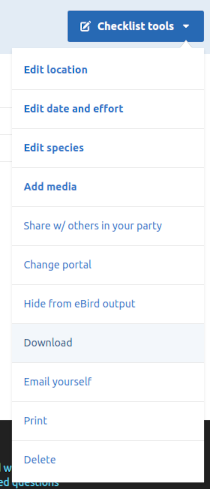
You get a file named something like S12345678_observations.csv, which you can go on to import into Bird Journal.
Checklist downloads leave a fair amount out — entry notes, the location’s latitude and longitude, the state or province and the breeding code are among the fields not included. Downloading all your data carries more of them, though still not everything.
Everything you have
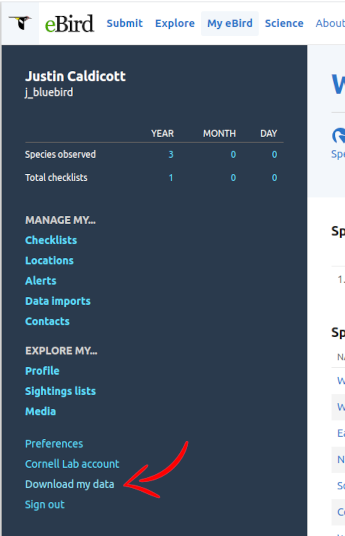
Choose Download my data.
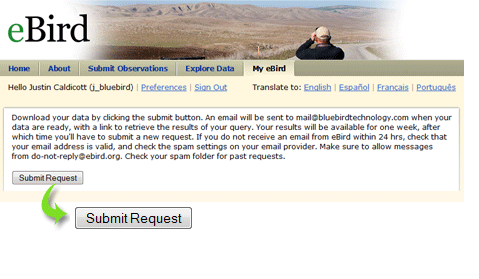
There is nothing to choose here — eBird only offers the lot. Press Submit Request and eBird emails a download link to your registered address. The download is a zip file containing a CSV called MyEBirdData.csv.
Opened in a spreadsheet, it looks something like this.
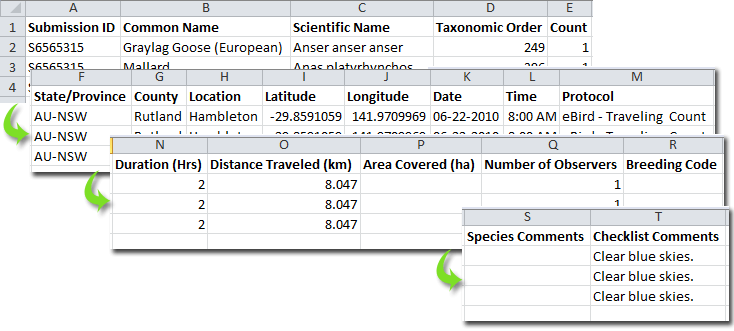
You can then import it into Bird Journal. Most of the fields you would expect are there, though not quite all of them.