
Taxonomy updates
How to install a taxonomy update, see exactly what changed in the parts of the taxonomy you use, and work through the few species that need a decision from you.
Updated
Taxonomies change: species are added, removed, renamed, split and rearranged as our understanding improves. Bird Journal keeps yours current through the Library, alongside checklists and synonym packs.
Most of an update applies on its own. A handful of species need a decision only you can make, and this article covers both halves.
Everything here works the same wherever you use Bird Journal — Windows, Mac, iPhone, iPad, Android and the web app all run the same screens. The pictures below are from a computer; on a phone the same screens stack into a list you tap through rather than showing two panels side by side.
Installing an update
When updates are waiting, a count appears on the Library button.

Press Library and open the Updates tab. Everything waiting to install is listed with its release notes. Press Update All.
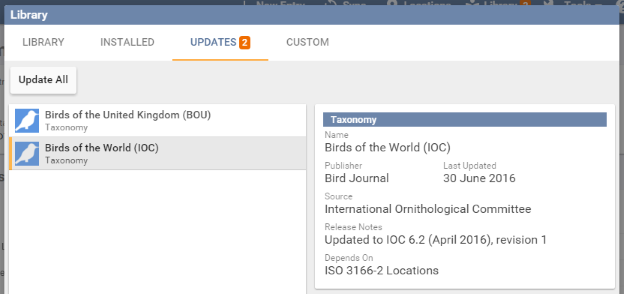
Updates install together rather than one at a time, and it takes a few seconds. Your other devices pick the update up automatically next time they sync, so there is no need to repeat it on each one.
What happens during an update
Bird Journal applies as much of a change as it can without losing any of the detail you recorded.
Where a change is unambiguous it is applied for you. If a subspecies has been split off as a new species that has no subspecies of its own, for instance, your records simply move across. Turning one of your records into a species that does have subspecies would quietly throw away detail you took the trouble to record, so Bird Journal will not do that on your behalf — it asks you instead.
Species and subspecies that no longer exist in the new taxonomy are marked deprecated. They stay in your journal, clearly marked, until you decide what should become of them — nothing is deleted behind your back. They are no longer offered when you enter new observations.
When the update finishes, Bird Journal tells you whether any of the species you use need attention. You can deal with them there and then, or leave them and come back whenever it suits you.
Seeing what changed
Open Tools ▸ Taxonomic Updates and choose the Change Details tab.
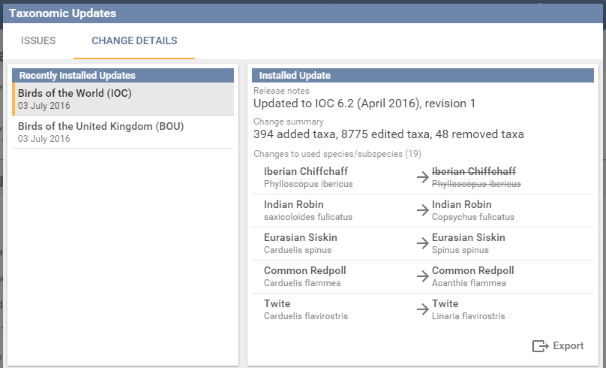
This lists the updates installed recently and, for each one, a summary of the whole update plus exactly how the parts of the taxonomy you use have changed. Species that have been removed appear struck through. It covers the taxonomy itself, not any changes you go on to make to your own records.
Export saves the list of changes, which is easier to work from than the screen if you have a lot to review.
If your records span more than one taxonomy, exporting your species list before and after an update is a good way to see the overall effect. Bird Journal maps equivalent species and subspecies between taxonomies according to your Primary and Secondary taxonomy settings.
Species that need a decision
This is the part that needs you. Where a species has been split, your records often cannot say on their own which bird you saw — unless you recorded the subspecies, the original record simply is not that specific.
A count on the Tools menu shows how many species are waiting on you, and it follows your account, so an update installed on one device shows up on the others too.

Open Tools ▸ Taxonomic Updates and stay on the Issues tab.
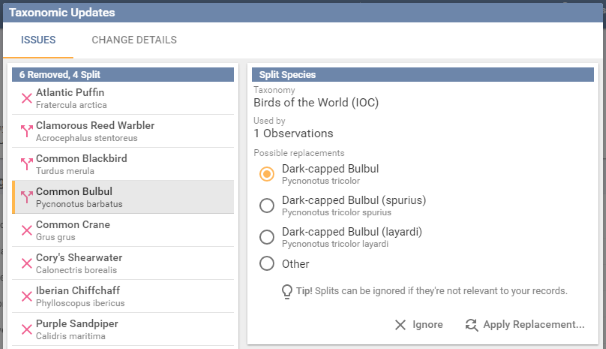
Each issue is one of two kinds.
Removed — the species or subspecies is no longer in the taxonomy. Usually this is because a species has become monotypic and no longer needs the grouping, generally after its subspecies moved or split elsewhere. A subspecies may be removed because it has been lumped with another, often the nominate.
Split — the taxonomy now recognises more than one species where it previously recognised one. Bird Journal also treats a subspecies moving to a different existing species as a split, because the race you actually saw may no longer belong to the species you recorded.
Selecting an issue shows which taxonomy it came from, how much of your journal uses it, and the replacements available. Choose one of the suggestions, or Other to pick something else entirely.
Resolve the removed ones as a minimum. Leaving them can make your species count read higher than it should. Splits are worth reviewing, but they may well not apply to your records, and one you have looked at and dismissed can be set aside with Ignore.
The range data published with Clements and AviList can help you decide between replacements. Bear in mind that different records of the same species may need different answers, depending largely on where you were when you saw them.
Applying a replacement
Press Apply Replacement… to open Replace Species, with Find and Replace With already filled in from the suggestion you chose.
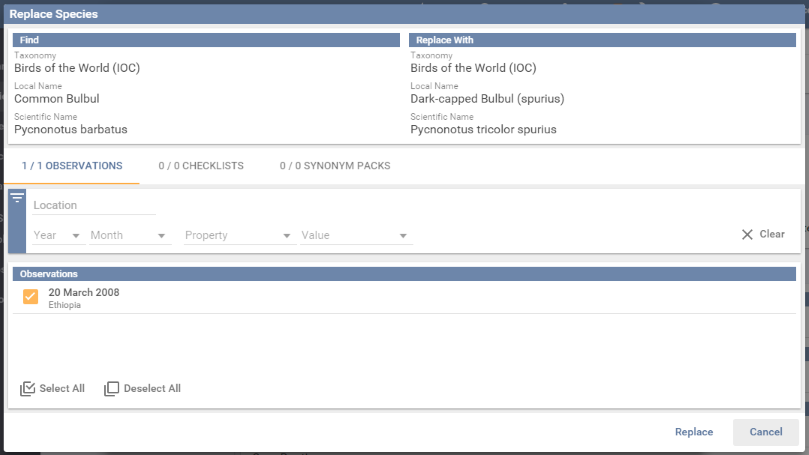
You do not have to replace everything at once. Use the filters and tick boxes to pick out a subset of your records — the ones from a particular place or year, say — and repeat with a different replacement for the rest.
Replacements can be applied to checklists and synonym packs you have created as well. The Checklists and Synonym Packs tabs control where the replacement is made.