
Filter your records
The filter bar sits above every list, graph, map and report, and narrows all of them the same way. Here is what each filter does.
Updated
Filters are how you find your way around a journal that has grown large. The same filter bar sits above your entries, your species, the graphs, the maps and the reports, so whatever you are looking at, you narrow it the same way.

The bar tucks itself away as you scroll down and comes back as you scroll up, so it never costs you more of the screen than it has to.
Filters narrow each other. Set the year to 2005 and the location filter offers only places you visited in 2005. It gets you to what you want in fewer steps, and it means you rarely go to the trouble of setting a filter only to be told there are no matches.
Location
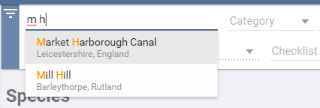
Type into the location filter and it suggests as you go. Partial letters are enough: M H finds locations whose words begin with M and H.
Date
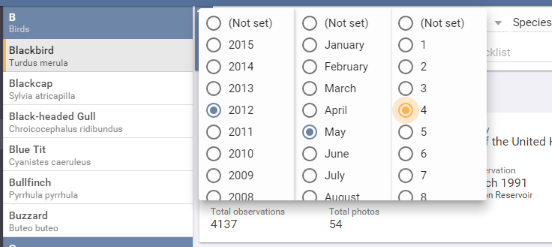
Filter by year, month and day. Year on its own is fine, as is year and month, but a day can only be chosen once both of those are set. Only dates you actually have observations for can be selected.
End date
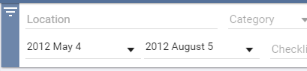
Once a date is set you can set an end date to make it a range. The end date is included in the range, and you can span year to year, month to month or day to day.
Species and taxon
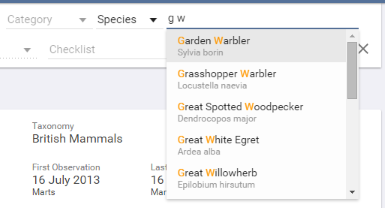
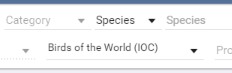
Three fields work together here. Category covers birds and the other wildlife you might record — butterflies, dragonflies and so on. Beside it, the rank chooses whether you are filtering by species, genus, family or order. Then the field itself, which you type into.
So leaving the category unset, leaving the rank on Species and typing G W searches every category for species whose names begin with G and W.
Checklist
This lists the checklists and taxonomies you have actually recorded against. On the species screen, for instance, setting it shows you the species you have recorded according to one particular checklist. Note that it filters by which checklist a record was entered from — it does not restrict results to that checklist’s geographical range.
Properties
Property filters cover the custom fields you have set up yourself, on entries and on observations alike. In the example below there is an entry property called Wind Direction, so every record with a given wind direction can be pulled out.
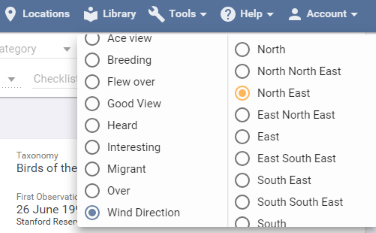
Properties come in three kinds — Text Box, Checkbox and Drop-down List. Text Box properties are not offered here, because free text has no fixed set of values to choose between.