
Enter observations on a computer
How to add an entry and record the observations in it, using the input screen on Windows, Mac and the web app.
Updated
Observations live inside entries. An entry is a single visit — a morning at your local patch, a week away, a glance out of the kitchen window — and it holds as much or as little detail as you care to record.
This article covers the input screen you get on Windows, Mac and the web app. On an iPhone, iPad or Android device Bird Journal uses an input screen built for a touchscreen instead: everything you can record is the same, but the screens differ, so the pictures below will not match.
Starting an entry
Press New Entry at the top of the screen.

To change an entry you have already made, open it first and then press Edit Entry.
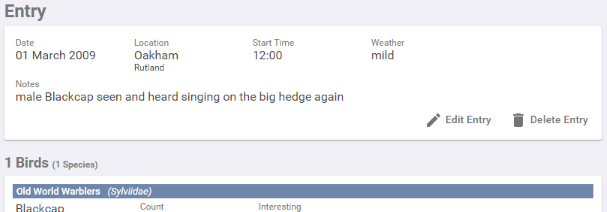
The entry itself
The top panel holds everything that describes the visit rather than a particular bird — where, when, the weather, your notes.
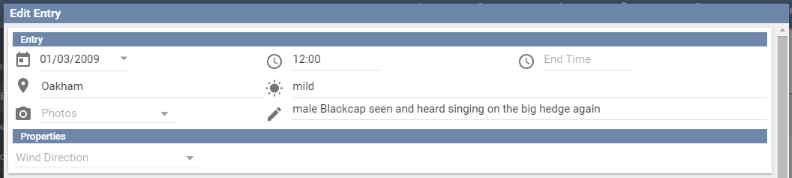
You decide which of these fields appear. Open Settings and look under What to Record: if you never photograph anything, turn the photo fields off and they stop getting in the way. You can add fields of your own too, as a Text Box, a Checkbox or a Drop-down List.
Type into Location to see suggestions. New locations are added on the Locations screen rather than here.
Recording what you saw
The lower panels are for the observations themselves.
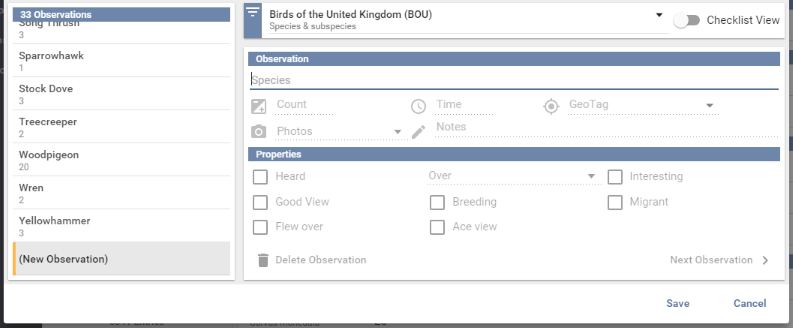
Type into Species. You only need the first letters of each word — ba g finds Barnacle Goose.
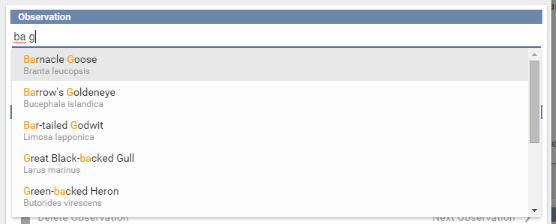
Press Enter or Tab to take a suggestion, or click it. The remaining observation fields then come alive, and again you can record as much or as little as you like.
Pressing Enter in the Count, Time or GeoTag field starts the next observation with the cursor back in Species, so a run of birds can be typed without reaching for the mouse. The list on the left grows as you go.
Choosing what you enter from
Click the checklist name to open the checklist picker.
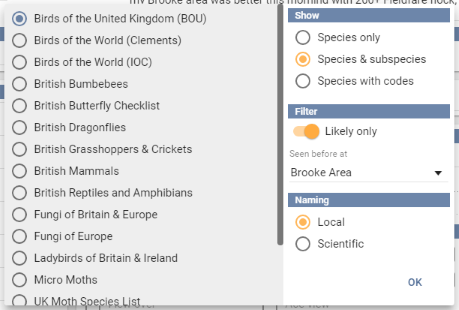
Pick the checklist or taxonomy to enter from on the left. Only items relevant to where the entry is for are offered, which keeps the list short.
Three groups of options sit alongside:
- Show — whether subspecies, or species codes, can be entered as well as species.
- Filter — Likely only narrows the list to species already recorded near this location. Where you have too few records for that to mean anything, Bird Journal says so rather than handing you an empty list.
- Naming — switches between everyday and scientific names.
Your choices are remembered, and the likely filter picks a sensible location on its own, based on where the entry is for.
Ticking from a list instead
Some people would rather work down a list than type. Turn on Checklist View.

The list of observations becomes a list of every species with a box against each, the Species field is replaced by a Search box, and you tick off what you saw. You can switch between the two views whenever you like, and Bird Journal remembers which you prefer.