
Add photos
How to attach photos to an entry or to an individual observation, and what Bird Journal does with them once they are in.
Updated
Photos can be added on every device you use Bird Journal on — Windows, Mac, iPhone, iPad, Android and the web app.
Photos are stored inside your journal rather than merely pointed at, so moving or deleting the original file does not leave you with a gap where a bird used to be. They are uploaded to our systems along with everything else, for sync and for backup; while that is happening the sync icon bounces. On a computer, hovering over it tells you how many are still to go.
JPEG files of any size are accepted. They are resized on the way in to a maximum of 1,280 pixels on the longest side, which is enough to look good on a high-resolution screen without your journal growing out of hand.
Adding them
Photos are added from the New / Edit Entry screen — click or tap the photo field.
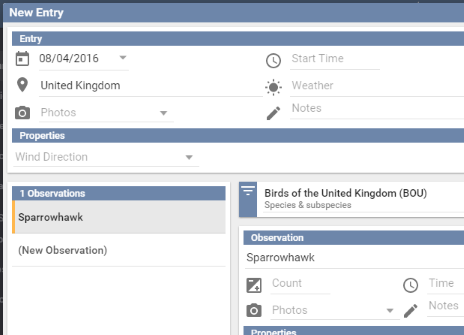
There are two places a photo can go, and the difference is worth a moment’s thought:
- On the entry — habitat, landscape, the view from the hide, something you could not identify.
- On an observation — a photo of that particular bird. Doing it this way means you can later filter to every photo you have of a species.
The photo picker then opens.
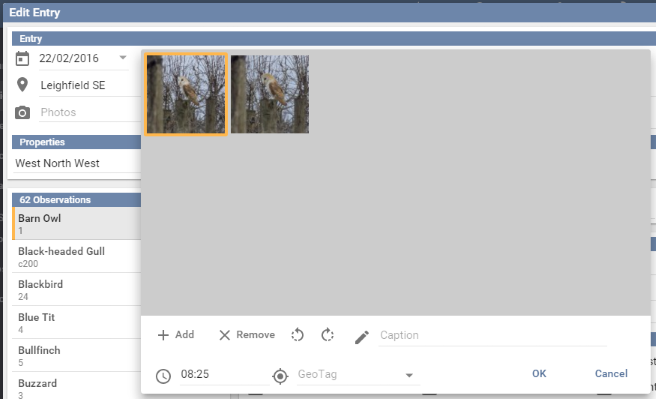
Press Add to choose files — you can pick several at once — or simply drag them into the picker.
Where the photo carries them, the time and position are read from the file’s own metadata and filled in for you. You can set them by hand as well, and add a Caption, which is shown with the photo.
Remove takes a photo out of Bird Journal; it does not touch the file on your disk. The two rotate buttons turn a photo that came in the wrong way round.
Keeping them to hand
Photos are downloaded as you look at them, so a device that has just been signed in holds very few of them. If you are heading somewhere without a signal and want them all with you, open Tools ▸ Download All Photos and Bird Journal will fetch the lot so they can be viewed offline. It can take a while if you have a great many. This is available everywhere except the web app.